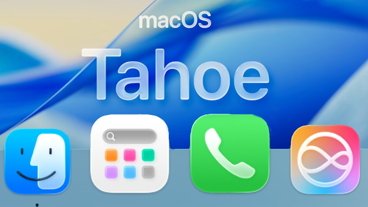
Apple's macOS Tahoe has been one of the most controversial and divisive Mac updates ever. After almost a year of use, not even including Apple Intelligence, some of its touted benefits haven't worked out.
Maybe this is just how it always is. For instance, when macOS Big Sur was announced, it was a gigantic change for the Mac yet now you can't even remember what was so new about it.
With macOS Tahoe, you do know that the chief new thing is the Liquid Glass redesign. It seems as if there are more critics of the design than there are proponents, but it's probably more that most users don't care enough to comment.
That is, they don't have any reason to care. The menubar that was so different at first has been toned down enough that many people might well not notice.
There is the ability to turn all of the Dock's icons transparent, but unless you know it's there and you then go hunting for it, you won't find that setting. Then if you do find it, you'll find it again very quickly afterwards as you realise that transparent app icons are a bad idea.
macOS Tahoe review: From great to fine
I've had the odd thing where Liquid Glass has meant I've needed to shove a window to the left to see what I needed. But not enough that I can even remember examples to recreate.
One thing that particularly appealed to me about Liquid Glass, though, was the idea that it helped you focus on your work, that all of the Mac's menus and Dock were less obtrusive. It's a great idea and since I use an ultra wide monitor that is quite narrow and stubby top to bottom, I expected to use this a lot.
I haven't used it once. Now that the menubar is more back to how it was before, there's no incentive to.
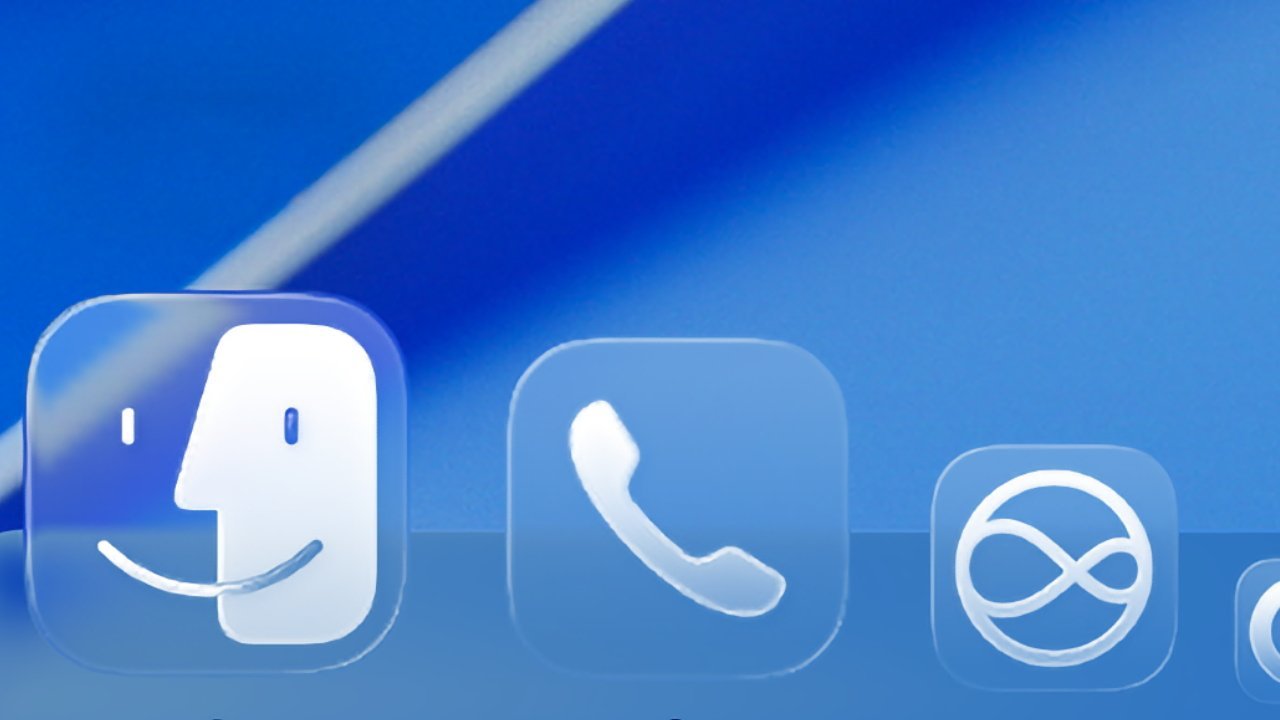
You can make Dock icons transparent, and there is no earthly reason to do so.
Liquid Glass is just fine on the Mac. I notice it more on the iPhone and the iPad, I tend not to consciously notice it on the Mac.
Which means that for me, I'm left with noticing all of the other aspects of macOS Tahoe, the ones that got far less attention. AppleInsider covered the five new features that at launch, seemed as if they could make us radically more productive.
They were:
- Clipboard history
- Spotlight Actions and Quick Keys
- Apple Intelligence in Shortcuts
- Live Activities
- Phone calls
Every one of these is genuinely useful and a very good addition to the Mac, except perhaps the Phone one. That's actually the one I was most excited about, to the extent that I added buttons to my Stream Deck for answering and ending calls.
But those buttons worked through a Keyboard Maestro macro which looked for the green phone icon to answer, or the red one to hang up. And I can be sitting here with my actual iPhone ringing, my iPads, and my Apple Watch all yelling that I have a call, and my Mac Studio doesn't care.
Phone calls or FaceTime, I don't know what it is, but with either of them, it takes an age for the notification to appear. So long that practically every single time, my caller has given up before I can see a button to press.
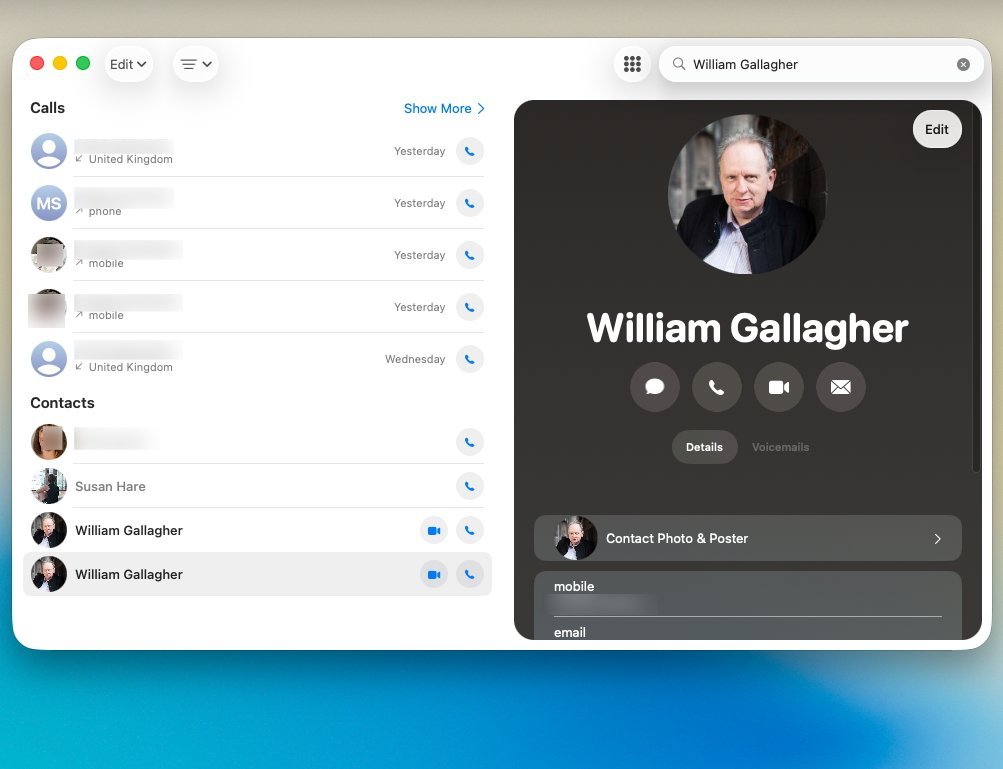
This should have been my most-used feature, but it just isn't good enough.
I could make outgoing calls, but then there was always some sound issue. I was never certain the person I was phoning would be able to hear me.
So to this day, the Phone app launches at login on my Mac Studio, and I keep quitting it. I must give it another go, or remove it from the login items list.
macOS Tahoe review: Clipboard history
That issue with the Phone could be something wrong somewhere with my Mac Studio, it may well be that it works better for you. Similarly, the macOS Tahoe clipboard history feature may be precisely what you need, but it hasn't turned out to be useful for me.
This would be entirely because I have already been using third-party rivals, especially Alfred 5, for at least a decade.
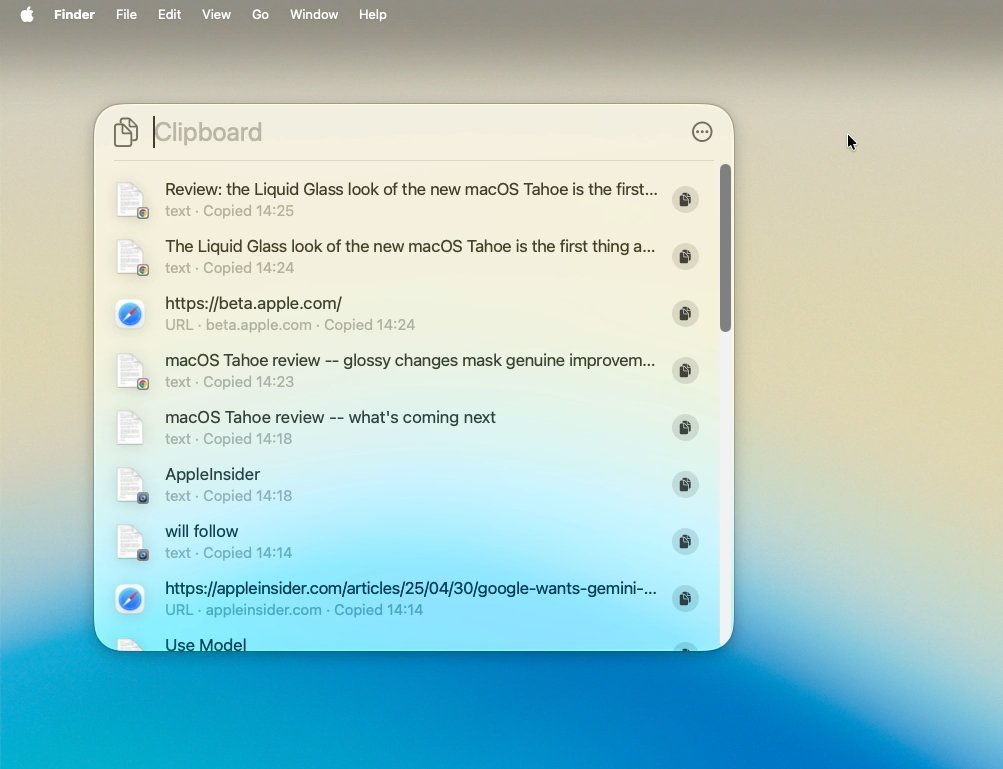
Spotlight's new Clipboard History is fantastic - unless you're already using any of the many alternatives
Apple's version is exactly as useful in principle, in that it remembers what you copy and so later you can paste it somewhere. It doesn't matter if you copied whatever it was right now or an hour ago, it doesn't matter if you've copied other things since.
Whatever it is, as long as you've copied it, you can paste it later. Or you can if you do it within something like eight hours, as Apple wipes this memory then.
The idea is presumably that people work eight hours a day, but if you do more, it's irritating. It's also only in place because Apple's clipboard history isn't as intelligent as it should be about removing passwords you've copied.
Rival apps like Alfred 5 and Raycast are, they removes the password from your clipboard history after you've used it. And they do both have limits on how long back you can have copied something, but with Alfred 5, for instance, you can have it set to remember copied items up to three months.
Plus with Alfred 5, I can copy six different things from five different places, and then paste all of it somewhere with one go. Clipboard history is so useful that you want to go tell everyone about it, particularly if they're Windows users.
So Apple making a clipboard history be part of macOS Tahoe is unquestionably great. If you've never used one before, if you don't have one already, you've got one now and you'll wonder how you did without it.
I'm just hoping that the next version of macOS will improve it.
macOS Tahoe review: Shortcuts and Apple Intelligence
Similarly, I am hoping that the next macOS will fix a bug that is in macOS Tahoe and has been in every release for some years.
I am an excessive user of tab groups in Safari, meaning with a few clicks I can have every tab and site open that I might need for AppleInsider work. If I then have a Writers' Guild finance committee meeting, then with a few clicks I can have all of the agenda sites, the proposal papers, the accounts and so on.
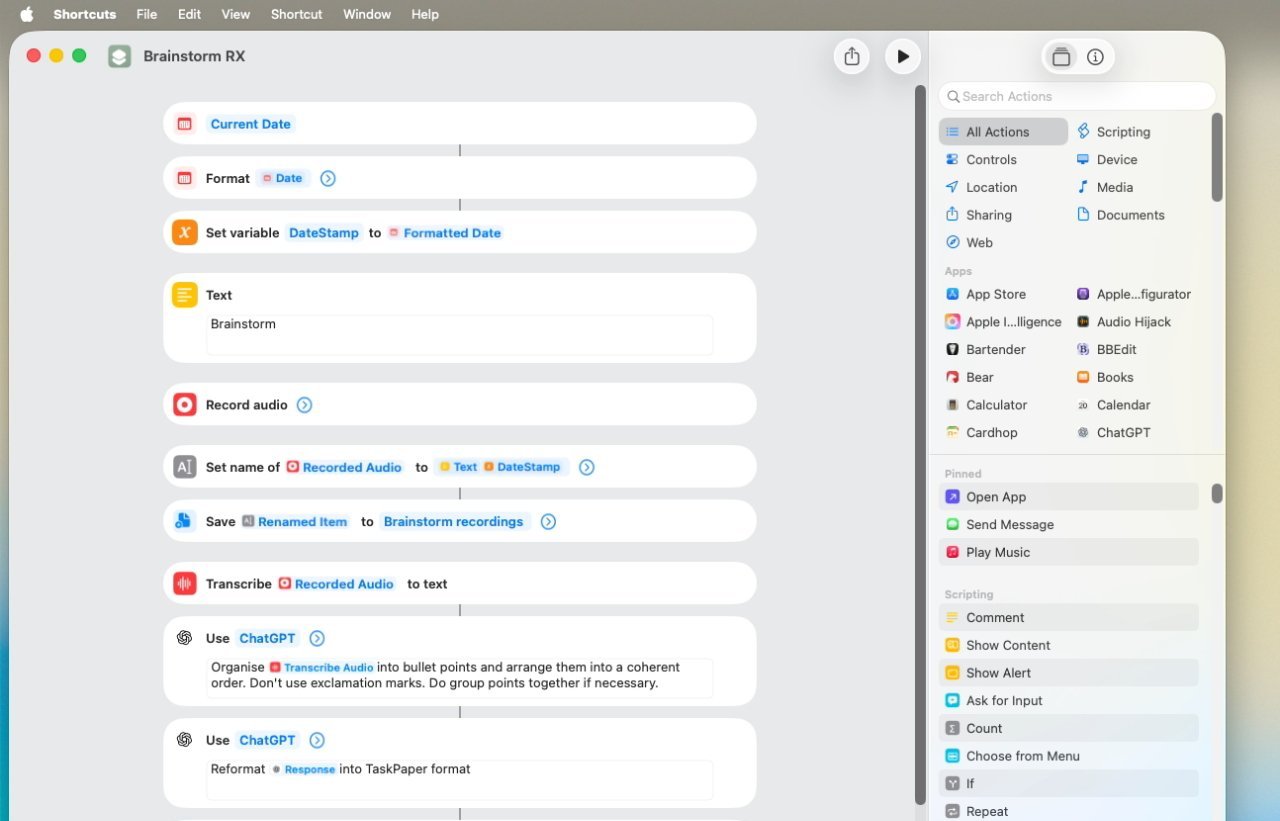
Apple basically added just one Apple Intelligence action to Shortcuts, but it's superb.
Tab groups mean you can have everything you need for the task at hand. Very importantly, they also mean that you do not have anything else, you solely see what you need.
It is a great feature, and there is a Shortcut that lets you switch between these tab groups. So, again, I could set up a Stream Deck button to take me straight to the AppleInsider tab group, and another for the Writers' Guild.
You can do this, you can set up a Shortcut to do exactly this and precisely once, it worked. Every other time, the Shortcut fails with an "internal error."
Fortunately, what does work in Shortcuts is the new Apple Intelligence action. That's been enough to make me regard Apple Intelligence as much more useful than I had.
I'm a writer so the Writing Tools in Apple Intelligence are mostly worthless. I'm never going to get it to rewrite my work to make it more friendly or more professional.
There is a way to get it rewrite your work to be more threatening, which was briefly fun.
However, using this one addition to Shortcuts means that over the last year I have:
- Added a transcription Shortcut to my Dock
- Created a note-taking app that records audio
- Had that note app also summarise ramblings into specific tasks
- Automated turning lists like this into HTML ones
There are oddities, such as how if you run the same list of steps through the same Shortcut, you sometimes get totally wrong results. But still, the one new "Use Model" action in Shortcuts is superb.
macOS Tahoe review: Spotlight Quick Actions
Quick Actions in Spotlight are rather good, too. The idea is that you can call up Spotlight with Command-Space Bar, then click on the Actions section and choose from countless options.
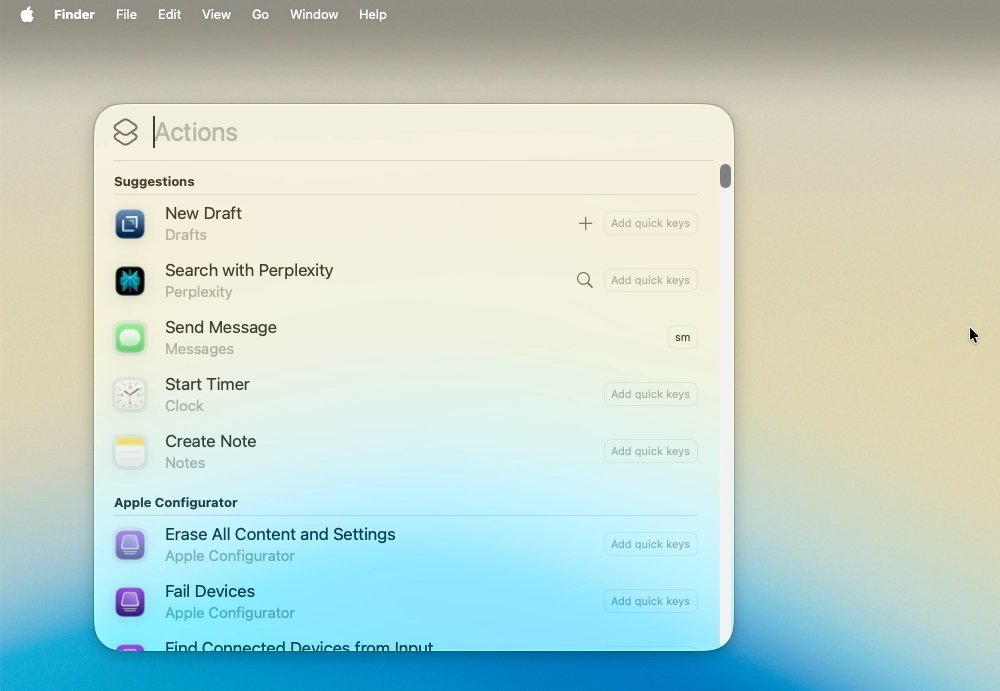
Countless Mac features can now be accessed in Quick Actions
Those options include things like setting timers, which is what I use most often. But there's also the ability to write messages or emails and have them be sent directly from Spotlight.
That doesn't sound as great as it actually is. Because what it means is that you can write emails without opening Mail or Messages, and so without seeing everything that is waiting there for you.
Spotlight then has a Files option for making it quicker to find documents, but to my mind not especially faster than just a regular Spotlight search. It also has an Applications option, which opens up a grid view of what apps the Mac thinks you're most likely to want to use next.
That exact same grid is now what appears when you click on Apps in the Dock. This is the feature that has replaced the old LaunchPad, and it is better, even if fans of the old way won't agree.
macOS Tahoe review: Live Activities
Apple brought iPhone-style Live Activities to the Mac with macOS Tahoe, and I know that's true, I have seen it in action. But only in testing.
Perhaps it's because I haven't had to track flights. Or that I'll never follow any sports scores.
Or maybe that while it does show when a takeaway curry is about to be delivered, I'm no longer at my Mac when I order in dinner.
I think Live Activities is superb on the iPhone, and especially now that Apple Watch workouts appear there too. Plus when I've been waiting at an airport, it has been Live Activities that told me my flight was cancelled before the departure boards did.
Yet on the Mac, I know Live Activities appear in the menu bar, I've just never seen them in real-life use. But yet again, that's me and my use cases, it can't be any criticism of how Apple has done it.
macOS Tahoe review: it sounds disappointing
Despite saying that I'm not criticizing Live Activities, and despite noting that my Phone app problems could just be mine, I do still sound negative about macOS Tahoe. And that's also despite saying I'm not against Liquid Glass.
The thing is, I moved to macOS Tahoe on my Mac Studio in order write about it during the beta process. I did not move my MacBook Pro over to it until weeks after the final release.
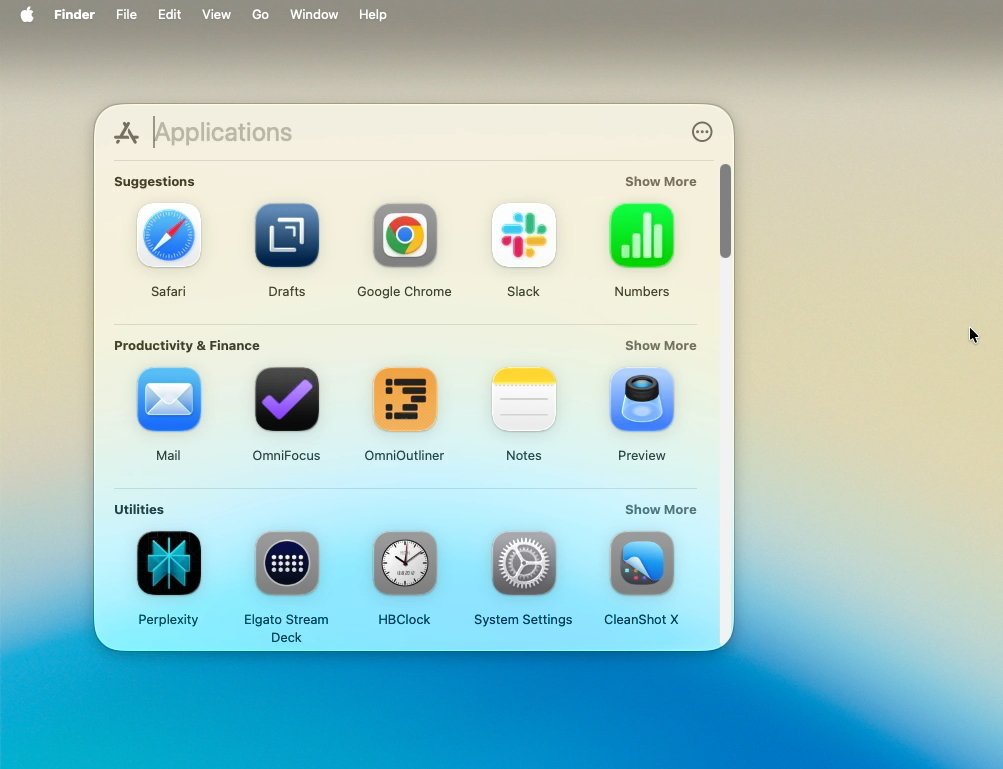
Launchpad is gone, but its replacement is better.
Which means I was forever going back and forth between macOS Tahoe and macOS Sequoia. And I preferred Tahoe.
I preferred it so much that I just had to go check that the previous version was called macOS Sequoia. It seems a long time ago, and it seems like your Mac isn't right when you're using it.
But then that definitely is what happens with every new release of macOS. Within a short while, the new edition no longer seems like a new toy, it feels as if this is how the Mac should always have been.
macOS Tahoe review - Pros
- Liquid Glass does freshen up the Mac
- Clipboard History is a boon, although limited
- Apple Intelligence boosts Shortcuts
- Live Activities are useful in the menubar
macOS Tahoe review - Cons
- Phone app feels abandoned: takes obscure fiddling to make it work at all
- Tab Groups Shortcut action still doesn't work
- FireWire is gone, but that's only applicable to a few
- Rival Clipboard History apps are all significantly better